> ## Documentation Index
> Fetch the complete documentation index at: https://sequence-0fb8d9e6-api_docs.mintlify.site/llms.txt
> Use this file to discover all available pages before exploring further.
# Collection Metadata Management
> How to store media using the Sequence Collections API with Cloudflare Workers, as well as read from the Metadata API to render images.
Time to complete: 20 minutes
In this guide we'll walk you through how to store media using the Sequence Collections API with [Cloudflare Workers](https://www.cloudflare.com/), as well as read from the Metadata API to render images
This can be accomplished with 8 steps
1. [Obtain a Secret API Key](/guides/metadata-guide#1-obtain-a-secret-api-key) from the [Sequence Builder Console](https://sequence.build)
2. [Create Collection](/guides/metadata-guide#2-create-collection-from-a-curl-request) from a cURL request one time
3. [Create Token](/guides/metadata-guide#3-create-token-using-tokenid) create a token using a tokenID
4. [Create Asset](/guides/metadata-guide#4-create-asset-using-tokenid) create an assetID
5. [Store an Image](/guides/metadata-guide#5-store-image-asset) process and store an image
6. [Update to Non-private](/guides/metadata-guide#6-update-non-private-token) update an asset to be non-private
7. [Publish Collection](/guides/metadata-guide#7-publish-collection-from-a-curl-request) from a cURL request one time
8. [Render Asset from API](/guides/metadata-guide#8-render-asset-from-api-publicly) from a cURL request one time
First follow [this section of the Collectible Minting Service Guide](/guides/mint-collectibles-serverless#1-setup-cloudflare-environment-with-wrangler-cli-and-deploy-a-test) guide to create a cloudflare worker
## 1. Obtain a Secret API Key (JWT\_ACCESS\_KEY)
In order to use the backend service, a `Secret API` Key must be obtained to authenticate requests to your project
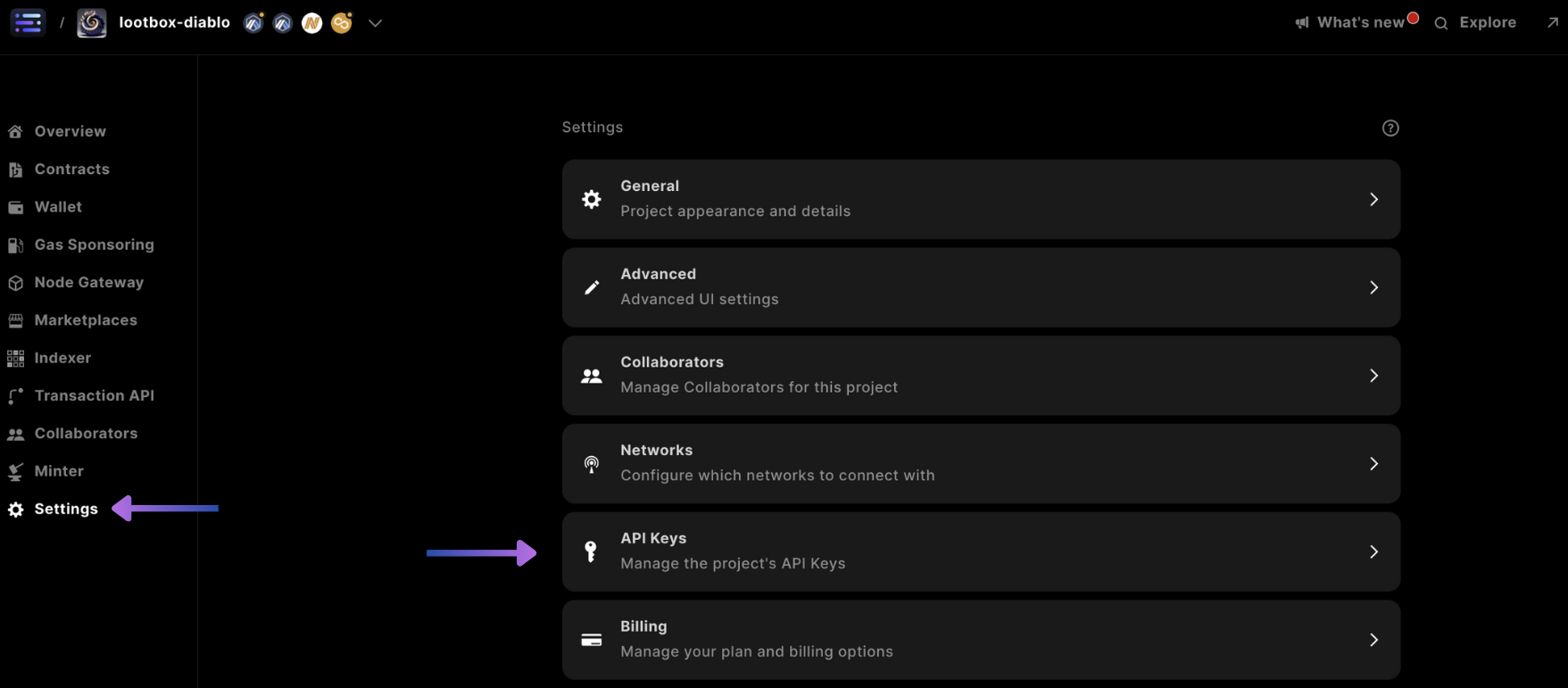
First start by accessing settings, and selecting the API Keys from the [Sequence Builder Console](https://sequence.build/)
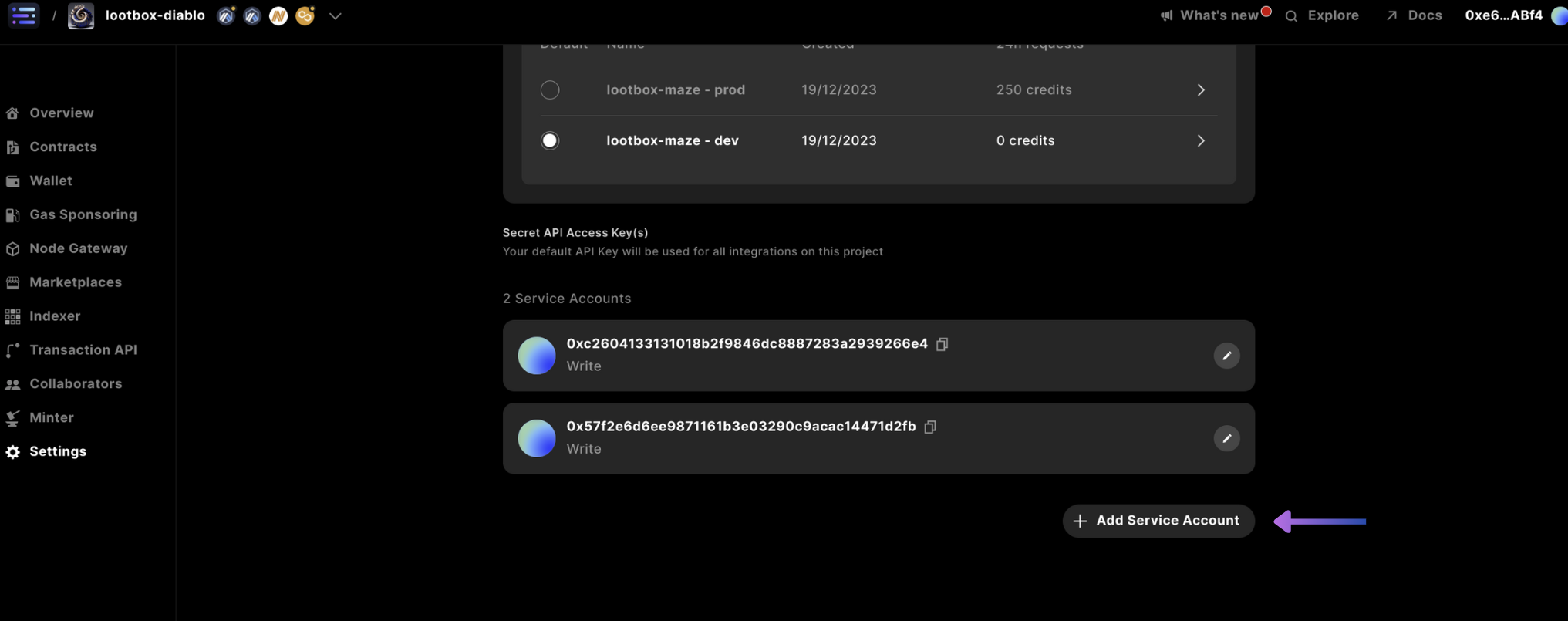
 Scroll down and select `+ Add Admin API Secret Key`
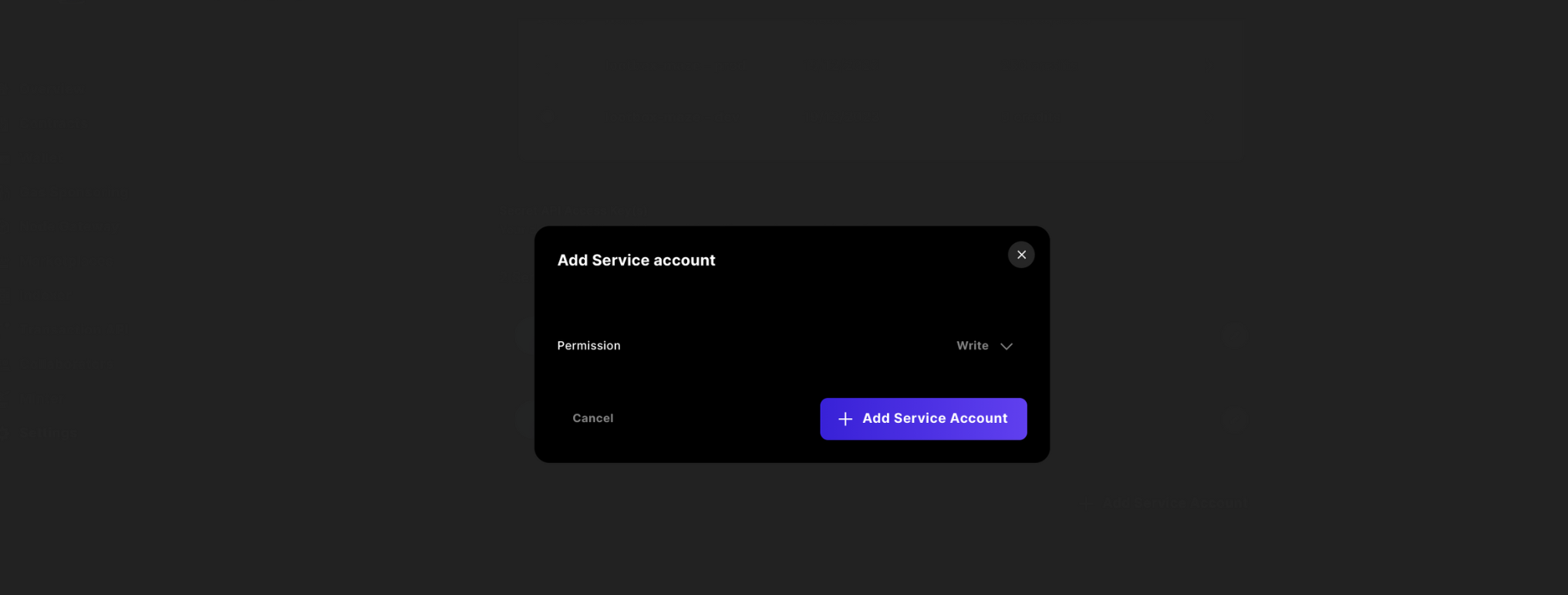
 Then change the access to `write` and confirm by pressing `+ Add API Secret Key`
 Finally `copy` the key and store it in your `wrangler.toml` as `JWT_ACCESS_KEY`, as you will not have access to this in the future from the Sequence Builder Console.
## 2. Create Collection from a cURL Request
As a one time requirement to uploading media to the service, a collection has to be first made. By using the `Secret API Key` and `projectID` retrieved from the [Builder Console](https://sequence.build/)
We call the service to retrieve a `collectionID`
```shell theme={null}
curl --location 'https://metadata.sequence.app/rpc/Collections/CreateCollection' \
--header 'Content-Type: application/json' \
--header 'Authorization: Bearer ' \
--data '{
"projectId": ,
"collection": {
"metadata": {
"name": "",
"description": "",
"external_link" : ""
},
"image": "",
"decimals": ,
"properties": null,
"attributes": null
}
}'
```
We then set the `collectionID` from the returned response in the `wrangler.toml` as `COLLECTION_ID`
## 3. Create Token using TokenID
If using a Clouflare worker, ensure to add `node_compat = true` to your `wrangler.toml` to allow the window object to be available to the `@0xsequence/metadata` package
Install the metadata package to use the `SequenceCollections` with `pnpm install @0xsequence/metadata`
```typescript theme={null}
import { SequenceCollections } from '@0xsequence/metadata'
import { ethers } from 'ethers'
...
const METADATA_URL = 'https://metadata.sequence.app'
const collectionsService = new SequenceCollections(METADATA_URL, JWT_ACCESS_KEY)
const randomTokenIDSpace = ethers.BigNumber.from(ethers.hexlify(ethers.randomBytes(20)))
const res1 = await collectionsService.createToken({
projectId: projectID,
collectionId: collectionID,
token: {
tokenId: String(randomTokenIDSpace),
name: name,
description: description,
decimals: 0,
attributes: attributes // can leave blank
}
})
```
## 4. Create Asset using TokenID
In the request, set the `metadadaField` (assetType) to `image`, with the other necessary fields completed to return an asset response to be used in the next step
```typescript theme={null}
const jsonCreateAsset = await collectionsService.createAsset({
projectId: projectID,
asset: {
id: Number(String(randomTokenIDSpace).slice(0,10)),
collectionId: collectionID,
tokenId: String(randomTokenIDSpace),
metadataField: "image"
}
})
```
## 5. Store Image Asset
With the passed in `asset.id` from the previous `jsonCreateAsset` object
```typescript theme={null}
...
const uploadAsset = async (env: Env, projectID: any, collectionID: any, assetID: any, tokenID: any, url: any) => {
const response = await fetch(url);
if (!response.ok) throw new Error(`Failed to fetch file from ${url}: ${response.statusText}`);
const arrayBuffer = await response.arrayBuffer();
const blob = new Blob([arrayBuffer]);
const formData = new FormData();
formData.append('file', blob);
let METADATA_URL = 'https://metadata.sequence.app'
// Construct the endpoint URL
const endpointURL = `${METADATA_URL}/projects/${projectID}/collections/${collectionID}/tokens/${tokenID}/upload/${assetID}`;
try {
// Use fetch to make the request
const fetchResponse = await fetch(endpointURL, {
method: 'PUT',
body: formData,
headers: {
Authorization: `Bearer ${env.JWT_ACCESS_KEY}`, // Put your token here
},
});
// Assuming the response is JSON
const data = await fetchResponse.json();
return data;
}catch(err){
console.log(err)
}
}
...
const uploadAssetRes = await uploadAsset(env, projectID, collectionID, jsonCreateAsset.asset.id, String(randomTokenIDSpace), imageUrl)
...
```
Where the returned `uploadAssetRes.url` is the media file url living on Sequence servers
## 6. Update Non-private Token
Now, we make the token non-private by setting a `private` boolean to `false`
```typescript theme={null}
const res3 = await collectionsService.updateToken({
projectId: projectID,
collectionId: collectionID,
private: false,
tokenId: String(randomTokenIDSpace),
token: {
name: name,
attributes: attributes,
tokenId: String(randomTokenIDSpace),
}
})
```
***
## 7. Publish Collection From A cURL Request
Finally, also as a one time request, we publish the collection based on the `projectID` and `collectionID` by running the following command
```shell theme={null}
curl --location 'https://metadata.sequence.app/rpc/Collections/PublishCollection' \
--header 'Content-Type: application/json' \
--header 'Authorization: Bearer \
--data '{
"projectId": ,
"collectionId":
}'
```
This would make the collection and all the tokens with the private flag set as `false` accessible publicly, while others remain hidden until changed
## 8. Render Asset from API Publicly
You can test your prior work, by calling this cURL request with the updated variables, which will download the file to your local terminal.
Or, you can copy and paste into a browser and see the image
Where if you used the same code, the `` will be `image.png`
```shell [cURL] theme={null}
curl --location 'https://metadata.sequence.app/projects//collections//tokens//' --output stored_file.png
```
And if you were using the collection for the `baseURI` of an `ERC721` or `ERC1155` you would write to a smart contract `setBaseMetadataURI` the following `URI`
```
https://metadata.sequence.app/projects//collections//tokens/
```
And the smart contract will automatically append the `tokenID` to the end
Give it a try
```shell [cURL] theme={null}
curl https://metadata.sequence.app/projects/1229/collections/40/tokens/457657099779485875855215293997335918990635014431
```
Or in a [browser](https://metadata.sequence.app/projects/1229/collections/40/tokens/457657099779485875855215293997335918990635014431)
### Render Asset from API Privately
If you decide to keep your assets private (in the token parameter, private: true), you can still view the token image if you provide the jwt\_access\_key in the header.
For this guide, the `metadata_field` is set to `image`
```shell [cURL] theme={null}
curl --location 'https://metadata.sequence.app/projects//collections//tokens//asset/' \
--header 'Authorization: Bearer ' \
--output stored_file.png
```
Full code for this guide can be found [here](https://github.com/0xsequence-demos/template-cloudflare-worker-collections-api/tree/master)
Finally `copy` the key and store it in your `wrangler.toml` as `JWT_ACCESS_KEY`, as you will not have access to this in the future from the Sequence Builder Console.
## 2. Create Collection from a cURL Request
As a one time requirement to uploading media to the service, a collection has to be first made. By using the `Secret API Key` and `projectID` retrieved from the [Builder Console](https://sequence.build/)
We call the service to retrieve a `collectionID`
```shell theme={null}
curl --location 'https://metadata.sequence.app/rpc/Collections/CreateCollection' \
--header 'Content-Type: application/json' \
--header 'Authorization: Bearer ' \
--data '{
"projectId": ,
"collection": {
"metadata": {
"name": "",
"description": "",
"external_link" : ""
},
"image": "",
"decimals": ,
"properties": null,
"attributes": null
}
}'
```
We then set the `collectionID` from the returned response in the `wrangler.toml` as `COLLECTION_ID`
## 3. Create Token using TokenID
If using a Clouflare worker, ensure to add `node_compat = true` to your `wrangler.toml` to allow the window object to be available to the `@0xsequence/metadata` package
Install the metadata package to use the `SequenceCollections` with `pnpm install @0xsequence/metadata`
```typescript theme={null}
import { SequenceCollections } from '@0xsequence/metadata'
import { ethers } from 'ethers'
...
const METADATA_URL = 'https://metadata.sequence.app'
const collectionsService = new SequenceCollections(METADATA_URL, JWT_ACCESS_KEY)
const randomTokenIDSpace = ethers.BigNumber.from(ethers.hexlify(ethers.randomBytes(20)))
const res1 = await collectionsService.createToken({
projectId: projectID,
collectionId: collectionID,
token: {
tokenId: String(randomTokenIDSpace),
name: name,
description: description,
decimals: 0,
attributes: attributes // can leave blank
}
})
```
## 4. Create Asset using TokenID
In the request, set the `metadadaField` (assetType) to `image`, with the other necessary fields completed to return an asset response to be used in the next step
```typescript theme={null}
const jsonCreateAsset = await collectionsService.createAsset({
projectId: projectID,
asset: {
id: Number(String(randomTokenIDSpace).slice(0,10)),
collectionId: collectionID,
tokenId: String(randomTokenIDSpace),
metadataField: "image"
}
})
```
## 5. Store Image Asset
With the passed in `asset.id` from the previous `jsonCreateAsset` object
```typescript theme={null}
...
const uploadAsset = async (env: Env, projectID: any, collectionID: any, assetID: any, tokenID: any, url: any) => {
const response = await fetch(url);
if (!response.ok) throw new Error(`Failed to fetch file from ${url}: ${response.statusText}`);
const arrayBuffer = await response.arrayBuffer();
const blob = new Blob([arrayBuffer]);
const formData = new FormData();
formData.append('file', blob);
let METADATA_URL = 'https://metadata.sequence.app'
// Construct the endpoint URL
const endpointURL = `${METADATA_URL}/projects/${projectID}/collections/${collectionID}/tokens/${tokenID}/upload/${assetID}`;
try {
// Use fetch to make the request
const fetchResponse = await fetch(endpointURL, {
method: 'PUT',
body: formData,
headers: {
Authorization: `Bearer ${env.JWT_ACCESS_KEY}`, // Put your token here
},
});
// Assuming the response is JSON
const data = await fetchResponse.json();
return data;
}catch(err){
console.log(err)
}
}
...
const uploadAssetRes = await uploadAsset(env, projectID, collectionID, jsonCreateAsset.asset.id, String(randomTokenIDSpace), imageUrl)
...
```
Where the returned `uploadAssetRes.url` is the media file url living on Sequence servers
## 6. Update Non-private Token
Now, we make the token non-private by setting a `private` boolean to `false`
```typescript theme={null}
const res3 = await collectionsService.updateToken({
projectId: projectID,
collectionId: collectionID,
private: false,
tokenId: String(randomTokenIDSpace),
token: {
name: name,
attributes: attributes,
tokenId: String(randomTokenIDSpace),
}
})
```
***
## 7. Publish Collection From A cURL Request
Finally, also as a one time request, we publish the collection based on the `projectID` and `collectionID` by running the following command
```shell theme={null}
curl --location 'https://metadata.sequence.app/rpc/Collections/PublishCollection' \
--header 'Content-Type: application/json' \
--header 'Authorization: Bearer \
--data '{
"projectId": ,
"collectionId":
}'
```
This would make the collection and all the tokens with the private flag set as `false` accessible publicly, while others remain hidden until changed
## 8. Render Asset from API Publicly
You can test your prior work, by calling this cURL request with the updated variables, which will download the file to your local terminal.
Or, you can copy and paste into a browser and see the image
Where if you used the same code, the `` will be `image.png`
```shell [cURL] theme={null}
curl --location 'https://metadata.sequence.app/projects//collections//tokens//' --output stored_file.png
```
And if you were using the collection for the `baseURI` of an `ERC721` or `ERC1155` you would write to a smart contract `setBaseMetadataURI` the following `URI`
```
https://metadata.sequence.app/projects//collections//tokens/
```
And the smart contract will automatically append the `tokenID` to the end
Give it a try
```shell [cURL] theme={null}
curl https://metadata.sequence.app/projects/1229/collections/40/tokens/457657099779485875855215293997335918990635014431
```
Or in a [browser](https://metadata.sequence.app/projects/1229/collections/40/tokens/457657099779485875855215293997335918990635014431)
### Render Asset from API Privately
If you decide to keep your assets private (in the token parameter, private: true), you can still view the token image if you provide the jwt\_access\_key in the header.
For this guide, the `metadata_field` is set to `image`
```shell [cURL] theme={null}
curl --location 'https://metadata.sequence.app/projects//collections//tokens//asset/' \
--header 'Authorization: Bearer ' \
--output stored_file.png
```
Full code for this guide can be found [here](https://github.com/0xsequence-demos/template-cloudflare-worker-collections-api/tree/master)